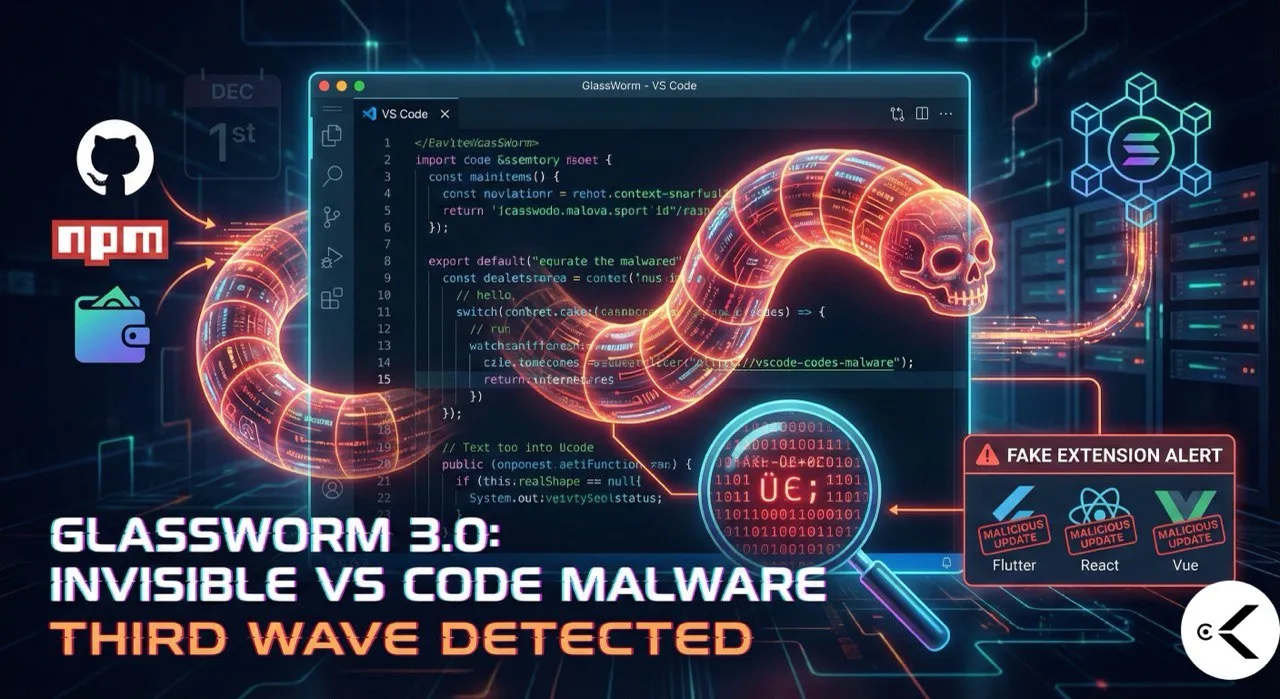
GlassWorm 3.0 is here, and it’s a serious threat to developers. This “invisible” VS Code malware is back for its third wave, proving once again that our development tools are prime targets for cyberattacks. On December 1st, 24 new malicious extensions dropped, designed to steal your credentials, hijack your machine, and spread even further. This isn’t just a nuisance; it’s a direct assault on the software supply chain. Therefore, understanding how GlassWorm operates and taking proactive steps to protect your VS Code environment is crucial.
What Makes GlassWorm 3.0 So Dangerous?
The most terrifying aspect of GlassWorm 3.0 is its stealth. The malware’s code is quite literally invisible to the human eye. Attackers are cleverly using non-rendering Unicode characters. This means you could carefully review an extension’s source code and see absolutely nothing out of the ordinary. It’s a masterclass in hidden malicious intent.
Once installed, the worm wastes no time. Here’s what it steals and how it compromises your system:
Credential Theft: It immediately targets and steals your GitHub credentials, npm tokens, OpenVSX account details, Git credentials, and even data from 49 popular cryptocurrency wallet extensions.
System Hijacking: Your machine becomes part of a criminal network. GlassWorm installs a SOCKS proxy to route malicious traffic through your computer. It also sets up a hidden VNC (Virtual Network Computing) for complete, covert remote access.
Self-Propagation: The stolen credentials aren’t just for personal gain; they’re used to infect more extensions. This is why it’s called a worm—it spreads itself across the developer ecosystem.
How GlassWorm 3.0 Spreads: Impersonation & Blockchain Power
This latest wave of GlassWorm malware primarily targets users of popular developer tools. It impersonates well-known extensions for technologies like:
Flutter
React Native
Vue
Tailwind
Vim
Yaml
Svelte
Prettier clones
The attack method is cunning: attackers publish a seemingly clean extension, wait for it to be approved by the VS Code marketplace, and then push a malicious update. The problem is, VS Code extensions often auto-update by default. This means a developer can get infected silently, without any interaction or warning. Furthermore, the command and control (C2) infrastructure that GlassWorm uses is incredibly resilient. It’s hosted on the Solana blockchain, making it nearly impossible to take down. They even use Google Calendar as a backup! This robust setup means the malware infrastructure is designed to be “unkillable.”

🛡️ Protect Your VS Code: An Essential Security Checklist
Given the sophisticated nature of GlassWorm 3.0, taking immediate and sustained action to secure your VS Code environment is absolutely vital. Here’s a comprehensive checklist to help you lock down your setup.
Phase 1: Immediate Audit & Cleanup (Do This Now!)
This first phase is about quickly identifying and removing potential threats.
Access Your Installed Extensions List:
Open VS Code.
Click the Extensions icon in the Activity Bar on the side (or press
Ctrl+Shift+X/Cmd+Shift+X).Click the “Filter” icon (it looks like a funnel) and choose “Installed.” This shows you everything currently on your system.
The “Necessity” Audit – Go Through Each Extension:
Remove unused extensions: If you haven’t used an extension for a language, framework, or tool in the last month, uninstall it. Every installed extension adds to your potential attack surface. Less is more when it comes to security.
Identify “Ghost” Extensions: As you scroll, if you see an extension you don’t remember installing, uninstall it immediately. Better safe than sorry!
The “Publisher Credibility” Check – Verify Trustworthiness:
For every remaining extension you want to keep, click on it to open its details pane.
Verify the Publisher: Does the publisher name exactly match the official entity? For example, ensure it says “Microsoft” and not “Mircosoft.” Look for the small blue “verified” checkmark next to the publisher name—it’s a good sign.
Review Recent Activity: Check the “Reviews” and “Q&A” tabs. Are other users suddenly reporting broken functionality, strange pop-ups, or odd behavior after a recent update? Such reports can be red flags.
Scrutinize High-Risk Categories: Pay extra close attention to extensions related to the GlassWorm target list: Flutter, React Native, Vue, Tailwind, Vim, Yaml, Svelte, and Prettier clones. These are prime targets for impersonation.
Phase 2: Changing Habits & Hardening Your VS Code Settings
The silent auto-update feature is a significant weakness that GlassWorm exploits. It’s time to take control.
Disable Automatic Extension Updates (CRITICAL Step!):
Open your VS Code Settings (
Ctrl+,orCmd+,).Search for
extensions.autoUpdate.Change the setting from
"true"(or “All Extensions”) to"none"or"false".Why this is crucial: This setting forces you to manually approve updates. It prevents attackers from silently pushing malicious code to a previously clean and trusted extension you have installed.
Establish a Manual Update Protocol:
When VS Code shows that an update is available, do not just click “Update All.”
Instead, click on the individual extension to go to its details page. Read the
CHANGELOG(change log) to understand what’s new. Does the update seem legitimate and necessary?For very popular extensions, consider waiting a day or two before updating. This allows the wider community to report any potential issues before you install them.
Vetting New Installations – Be Vigilant:
Before you click “install” on any new extension:
Check Download Counts: Be wary of extensions with very few downloads that claim to replace or enhance popular tools. While not foolproof (attackers can inflate these numbers), it’s one indicator.
Check the Repository: Does the extension link to a public GitHub repository or similar source? Does that repository show recent activity, open issues, and a reasonable number of stars? A missing repository link is a significant red flag.
Phase 3: What to Do If You Suspect an Infection
If your audit revealed a suspicious extension that matches the GlassWorm behavior pattern, or if you notice any unusual activity, act fast:
Disconnect Immediately: Unplug your network cable or disable your Wi-Fi to disconnect your machine from the internet. This can prevent further data exfiltration or remote control.
Purge Thoroughly: Uninstall VS Code. Then, manually delete the extensions folder. This is typically located at
~/.vscode/extensionson Mac/Linux or%USERPROFILE%\.vscode\extensionson Windows. This ensures no remnants of the malware remain.Rotate All Credentials (Absolutely Critical!): GlassWorm is designed to steal credentials immediately. From a different, clean device, change the passwords and revoke API tokens for ALL services you use. This includes:
GitHub/GitLab/Bitbucket (and any connected Git services)
npm / PyPI / RubyGems (and any other package managers)
Cloud Providers (AWS, Azure, GCP, etc.)
Any cryptocurrency wallets if you had their extensions installed.
Your Code Editor: A New Attack Vector
The reality is stark: your code editor, once considered a safe space, is now a significant attack vector. Supply chain attacks are exploding, and developers are increasingly targeted. Every installed extension extends your attack surface. By following this checklist and adopting more cautious habits, you can significantly reduce your risk and protect your valuable work and personal data from threats like GlassWorm 3.0. Stay safe out there!